
Pelco-D Protocol Tutorial
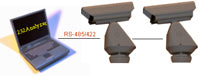
Pelco-D is a popular PTZ (Pan / Tilt / Zoom) camera control protocol used in the CCTV industry. (Click here to visit Pelco's website.)
This page will explain the following topics in details:
1) The format of Pelco-D
2) How to calculate the checksum byte by using 232Analyzer
3) Pelco-D command string examples
4) How to use 232Analyzer to control the Pelco-D cameras
5) Have fun playing with 232Analyzer and Pelco-D cameras
After reading this page and testing the camera with the 232Analyzer software , you should be able to understand the ease of using the Pelco-D protocol, and control any Pelco-D cameras in five minutes' time.
Notes:
1) Before you can control any Pelco-D cameras, you need to prepare the following items:
- A PC running 232Analyzer program
- An RS-232 port (or USB / RS-232 converter)
- An RS232 / RS485 converter
2) Make sure your COM port settings in the 232Analyzer program matches with camera's settings (Pelco-D cameras use No parity, 8 Data bits and 1 Stop bit, baud rate depends on your camera setting)
(Click here to download the 232Analyzer FREE Version. Click here to download Pelco-D / P device profiles)
1) The format of Pelco-D
Pelco-D consists of 7 hexadecimal bytes (all byte data used in this page are in Hexadecimal format unless otherwise specified).
| Byte 1 | Byte 2 | Byte 3 | Byte 4 | Byte 5 | Byte 6 | Byte 7 |
|---|---|---|---|---|---|---|
| Sync | Camera Address | Command 1 | Command 2 | Data 1 | Data 2 | Checksum |
- Byte 1 (Sync) - the synchronization byte, fixed to FF
- Byte 2 (Camera Address) - logical address of the camera being controlled (Address 1 is 01)
- Byte 3 & 4 (Command 1 and 2) are shown below
- Byte 5 (Data 1) - pan speed, range from 00 (stop) to 3F (high speed) and FF for "turbo" speed (the maximum pan speed that the device can go)
- Byte 6 (Data 2) - tilt speed, range from 00 (stop) to 3F (maximum speed)
- Byte 7 (Checksum) - sum of bytes (excluding the synchronization byte), then modulo 100 (Decimal code: 256)
Command 1 and 2 details
| Bit 7 | Bit 6 | Bit 5 | Bit 4 | Bit 3 | Bit 2 | Bit 1 | Bit 0 | |
|---|---|---|---|---|---|---|---|---|
| Command 1 | Sense | Reserved | Reserved | Auto / Manual Scan | Camera On/Off | Iris Close | Iris Open | Focus Near |
| Command 2 | Focus Far | Zoom Wide | Zoom Tele | Tilt Down | Tilt Up | Pan Left | Pan Right | Fixed to 0 |
Example (Command 2):
Pan Left - 0 0 0 0 0 1 0 0, which equals to 04 (both hexadecimal and decimal)
Some other commands
| Command | Byte 3 | Byte 4 | Byte 5 | Byte 6 |
|---|---|---|---|---|
| Go to Preset | 00 | 07 | 00 | 01 to FF |
| Set Zoom Speed | 00 | 25 | 00 | 00 to 33 |
| Set Focus Speed | 00 | 27 | 00 | 00 to 33 |
| Alarm Ack. | 00 | 19 | 00 | Alarm no. |
2) How to calculate the checksum byte by using 232Analyzer
Suppose you are controlling camera 1 (address 1) to pan left at high speed, the command string of the first 6 bytes would be: FF 01 00 04 3F 00
Step 1: Go to "Checksum Calculator" pane, choose "Hex" as "Operands format" and "+" as Operator. Then take out the first byte FF and key in all other bytes in the "Input operands" box. Remember to add "," after each byte of data. You will then get the result of "44"
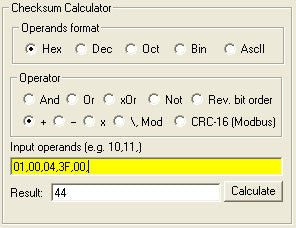
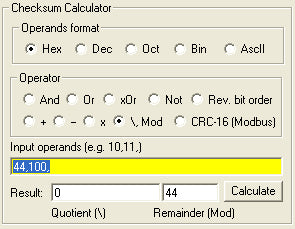
Step 2: Change Operator to "\,Mod", and key in the previous result ("44") and modulo parameter "100" in the "Input operands" box, remember to add "," after each byte of data. You will then get the result of "44" in "Remainder (Mod)" box.
"44" would be the result of checksum, now the full string of pan left at high speed command would be FF 01 00 04 3F 00 44
3) Pelco-D command string examples
Camera Address: 1
Pan Left at high speed: FF 01 00 04 3F 00 44
Pan Right at medium speed: FF 01 00 02 20 00 23
Tilt Up at high speed: FF 01 00 08 00 3F 48
Tilt Down at medium speed: FF 01 00 10 20 00 31
Stop all actions (Pan / Tilt / Zoom / Iris etc.): FF 01 00 00 00 00 01
Note: there will be no response from cameras in Pelco-D protocol
4) How to use 232Analyzer to control the Pelco-D cameras
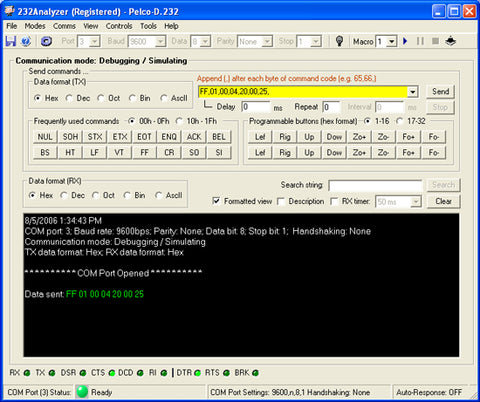
Suppose you are controlling camera address no. 1 to pan left at medium speed (command string: FF 01 00 04 20 00 25)
Way 1: From the command pane - choose "Hex" as the TX data format and key in the command string "FF,01,00,04,20,00,25," in the input box as shown below. Then click on the "Send" button. The command will then be sent out immediately and you will notice the camera panning left continuously.
Note: If you are using the FREE Version, choose "Dec" as TX data format and key in "255,1,0,4,32,0,37,"
Way 2: From Programmable buttons
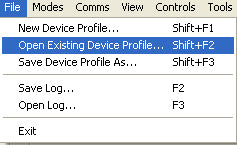
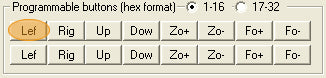
Download and unzip the Pelco-DP.zip file, then open "Pelco-D.232" file from 232Analyzer program. When you click on the first button "Lef", the command will be sent out after 500ms.
5) Have fun playing with 232Analyzer and Pelco-D cameras
The programmable buttons 1 to 8 will trigger the camera's action continuously. To stop, you have to send out the "Stop" command "FF 01 00 00 00 00 01" (or "255 01 00 00 00 00 01" Decimal format) to the camera.
"Pelco-DP.zip" file allows you to send two (2) commands with the click of a button, e.g. when you click on "Lef" button on the second row (button no. 9), the camera will pan left for 500ms and then stop. This is because button no. 9 is linked to button 17, which stores the "Stop" command. (Note: Programmable buttons 9 to 16 will trigger the camera's action for 500ms and will stop automatically).
You may program it in such a way that the camera pans left for 500ms, stops, tilts up for 1000ms, stops, tilts down for 500ms, and then pans right continuously. All sorts of actions can be done through "Programmable Buttons" or "Macros" functions.
Learn about Pelco-P »
Download Pelco-D / P examples »
Download 232Analyzer »