
USB Driver Installation Guide
|
For Windows 11, 10, 8, and 7, the drivers will install automatically when your computer is connected to the Internet. Alternatively, you can manually download and install the drivers from the FTDI's website. |
Questions about the USB Serial Converters? Please visit our FAQs page. |
» FTDI Driver Installation - Example 1: Windows Vista
» FTDI Driver Installation - Example 2: Windows XP
» FTDI Driver Installation - Example 3: Windows 2000
» Troubleshooting
» Driver Re-installation
» Driver Re-installation - Example 1: Windows Vista #1
» Driver Re-installation - Example 2: Windows Vista #2
» Driver Re-installation - Example 3: Windows XP/2003/2000/98/ME/Vista
FTDI Driver Installation - Quick Guide
- For Windows 11, 10, 8, and 7, the drivers will install automatically when your computer is connected to the Internet. Alternatively, you can manually download and install the drivers from the FTDI's website.
- For other Operating Systems, drivers can be downloaded manually from FTDI's website. Insert the CD (or thumb driver) containing the drivers into your computer. Connect the USB Serial converter to an available USB port, and the “Found New Hardware Wizard” will guide you through the installation process.
- When prompted to connect to Windows Updates to search for drivers, select “No, not at this time”, and follow the instructions for installing from the CD.
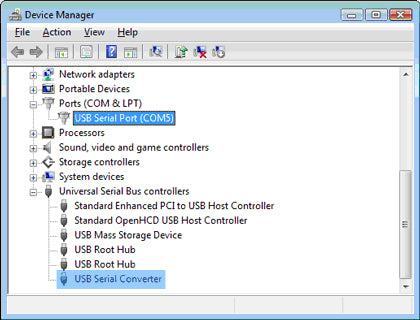
- Once the drivers are successfully installed, the USB Serial converter will appear in the Windows Device Manager: Under “Ports (COM & LPT)”: labeled as “USB Serial Port (COMx)”, and under “Universal Serial Bus controllers”: labeled as “USB Serial Converter” (Figure 1).
(FIGURE 1)
IMPORTANT NOTES:
- If it’s the first time you install the drivers for CommFront’s USB to Serial device, you will need to install the drivers twice. One is for “USB Serial Converter”, and the other one is for “USB Serial Port”. DO NOT close the 2nd “Found New Hardware Wizard” window while installing the driver.
- Upon completion of driver installations, remember to check the Windows Device Manager to make sure that the drivers are installed properly (Figure 1). If the drivers are not installed correctly, there will be a yellow exclamation icon displayed under the “Ports (COM & LPT)” or “USB Serial Bus controllers”, right-click on the yellow exclamation icon and select “Update driver”. Then search for the driver in the CD or thumb drive.
FTDI Driver Installation - Example 1: Windows Vista
- Disconnect your PC from the internet before driver installation. This is because the drivers are not available via Microsoft Windows Updates, but Windows Vista will search for the drivers via Microsoft Windows Updates by default.
- Insert the CD (or thumb drive) into your computer, and connect the USB Serial converter to an available USB port, the “Found New Hardware” window will pop up. Click on the “Locate and install driver software (recommended)” button to continue (Figure 2).

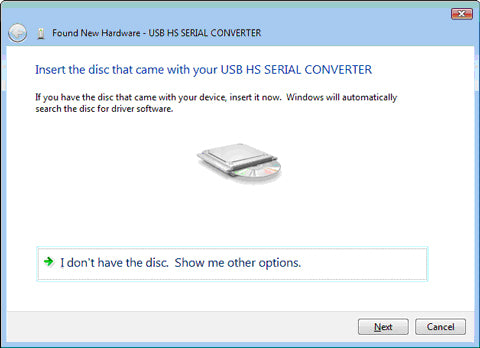
(FIGURE 2) - Windows Vista will look for the driver in the CD, click on the “Next” button to continue. This will start the driver installation for “USB Serial Converter” (Figure 3).
(FIGURE 3) - When the drivers are successfully installed, the following window will pop up - confirming that the driver installation of “USB Serial Converter” has been completed successfully. Click on the “Close” button to continue (Figure 4).

(FIGURE 4) - The 2nd “Found New Hardware” window will pop up, prompting you to install the driver for “USB Serial Port”. DO NOT close this window! And repeat steps 1) to 4) to install the driver for “USB Serial Port”.
- When the 2nd driver installation is completed, remember to check the Windows Device Manager to confirm that the drivers are installed successfully (Figure 1). The USB Serial converter will show up in the Windows Device Manager: under the “Ports (COM & LPT)” – labeled as “USB Serial Port (COMx)”, and “Universal Serial Bus controllers” - labeled as “USB Serial Converter”.
FTDI Driver Installation - Example 2: Windows XP
- Insert the CD (or thumb drive) into your computer, and connect the USB Serial converter to an available USB port, the “Found New Hardware Wizard” window will pop up. Select “No, not this time” and click on the “Next” button to continue (Figure 5).

(FIGURE 5) - Select “Install from a list or specific location (Advanced)” to install the driver from CD or thumb drive (Figure 6).

(FIGURE 6) - Select “Search for the best driver in these locations” and check the box of “Search removable media (floppy, CD-ROM…)”. Then click on the “Next” button (Figure 7).

(FIGURE 7) - When the drivers are successfully installed, the following window will pop up, confirming that the driver installation of “USB Serial Converter” has been completed. Click on the “Finish” button to continue (Figure 8).

(FIGURE 8) - The 2nd “Found New Hardware” window will pop up, prompting you to install the driver for “USB Serial Port”. DO NOT close this window! And repeat steps 1) to 4) to install the driver for “USB Serial Port”.
- When the 2nd driver installation is completed, remember to check the Windows Device Manager to confirm that the drivers are installed successfully (Figure 1). The USB Serial converter will show up in the Windows Device Manager: under “Ports (COM & LPT)” – labeled as “USB Serial Port (COMx)”, and under “Universal Serial Bus controllers” - labeled as “USB Serial Converter”.
FTDI Driver Installation - Example 3: Windows 2000
- Insert the CD (or thumb drive) into your computer, and connect the USB Serial converter to an available USB port, the “Found New Hardware Wizard” window will pop up. Click on the “Next” button to continue (Figure 9).

(FIGURE 9) - Select “Search for a suitable driver for my device (recommended)” and click on the “Next” button to continue (Figure 10).

(FIGURE 10) - Check the box of “CD-ROM drives”, and then click on the “Next” button to continue (Figure 11).

(FIGURE 11) - Windows will automatically locate the driver, for example, “e:\drivers\windows 2000_server 2003_xp_vista x32\ftdibus.inf”. Click on the “Next” button to continue (Figure 12).

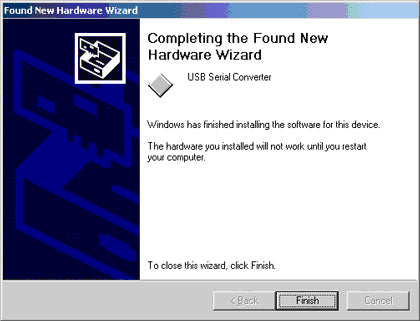
(FIGURE 12) - When the drivers are successfully installed, the following window will pop up, confirming that the driver installation of “USB Serial Converter” has been completed. Click on the “Finish” button to continue (Figure 13).
(FIGURE 13) - The 2nd “Found New Hardware” window will pop up, prompting you to install the driver for “USB Serial Port”. DO NOT close this window! And repeat steps 1) to 5) to install the driver for “USB Serial Port”.
- When the 2nd driver installation is completed, remember to check the Windows Device Manager to confirm that the drivers are installed successfully (Figure 1). The USB Serial converter will show up in the Windows Device Manager: under “Ports (COM & LPT)” – labeled as “USB Serial Port (COMx)”, and under “Universal Serial Bus controllers” - labeled as “USB Serial Converter”.
Troubleshooting
- Make sure the “Power” LED on the USB Serial converter is lit up.
- Make sure that the USB Serial converter is connected to your USB port, and the drivers are installed correctly (Figure 1); otherwise, please reinstall the drivers.
Driver Re-installation
- Drivers might not be installed properly if the above driver installation procedures were not followed; for example, the user did not disconnect the computer from the internet while installing drivers on Vista machines, or the 2nd “Found New Hardware Wizard” window was closed before the driver installation was completed. Below are some examples showing how to reinstall the drivers.
Driver Re-installation - Example 1: Windows Vista #1
- Symptoms: A yellow exclamation icon appears besides the “USB Serial Converter”. Also, there is no display of the “Ports (COM & LPT)” in the Windows Device Manager (Figure 14).
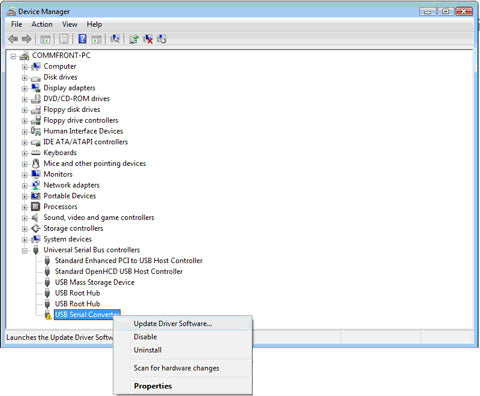
(FIGURE 14) - Right-click on the “USB Serial Converter” that displays with the yellow exclamation icon, and select “Update Driver Software…” (Figure 14).
- Click on the “Browse my computer for driver software” button to continue (Figure 15).

(FIGURE 15) - Locate the drivers in the CD or thumb drive, and click on the “Next” button to continue (Figure 16).

(FIGURE 16) - When the drivers are successfully updated, the following window will pop up, confirming that the driver installation of “USB Serial Converter” has been completed. Click on the “Close” button to exit (Figure 17).

(FIGURE 17)
Driver Re-installation - Example 2: Windows Vista #2
- Symptoms: A yellow exclamation icon appears besides the “USB Serial Port” (Figure 18).
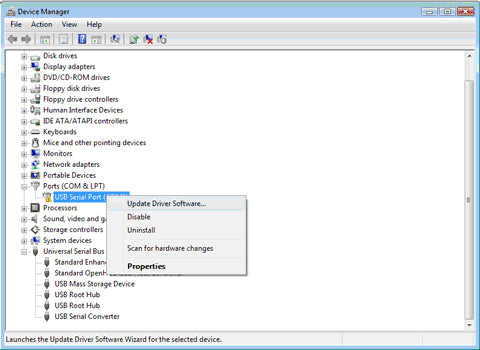
(FIGURE 18) - Right-click on the “USB Serial Port” that displays with the yellow exclamation icon, and select “Update Driver Software…” (Figure 18).
- Click on the “Browse my computer for driver software” button to continue (Figure 19).

(FIGURE 19) - Locate the driver in the CD or thumb drive, and click on the “Next” button to continue (Figure 20).
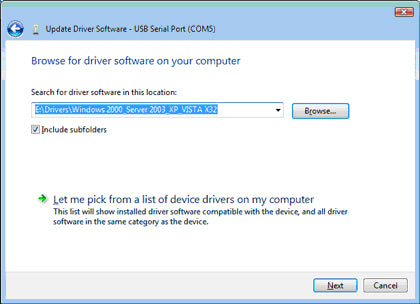
(FIGURE 20) - When the drivers are successfully updated, the following window will pop up, confirming that the driver installation of “USB Serial Port” has been completed. Click on the “Close” button to exit (Figure 21).

(FIGURE 21)
Driver Re-installation - Example 3: Windows XP/2003/2000/98/ME/Vista
Symptoms: No yellow exclamation signs, but COM port does not exist or is not functioning.- Locate and execute the driver un-installation program FTDIUNIN.exe in its respective folder. For example, for Windows 2000 / Server_2003 / XP / Vista 32-bit, the un-installation program is located at “E:\Drivers\Windows 2000_Server 2003_XP_Vista X32\”.
- Unplug the USB Serial converter, and click on the “Continue” button to uninstall the drivers (Figure 22).

(FIGURE 22) - Click on the “Finish” button to complete the un-installation of the drivers (Figure 23).

(FIGURE 23 - Follow the correct driver installation procedures above to reinstall the drivers for your USB Serial converter.